# Configure your profile
This guide will help you set up your profile with your profile picture, your user-name etc, and change your password.
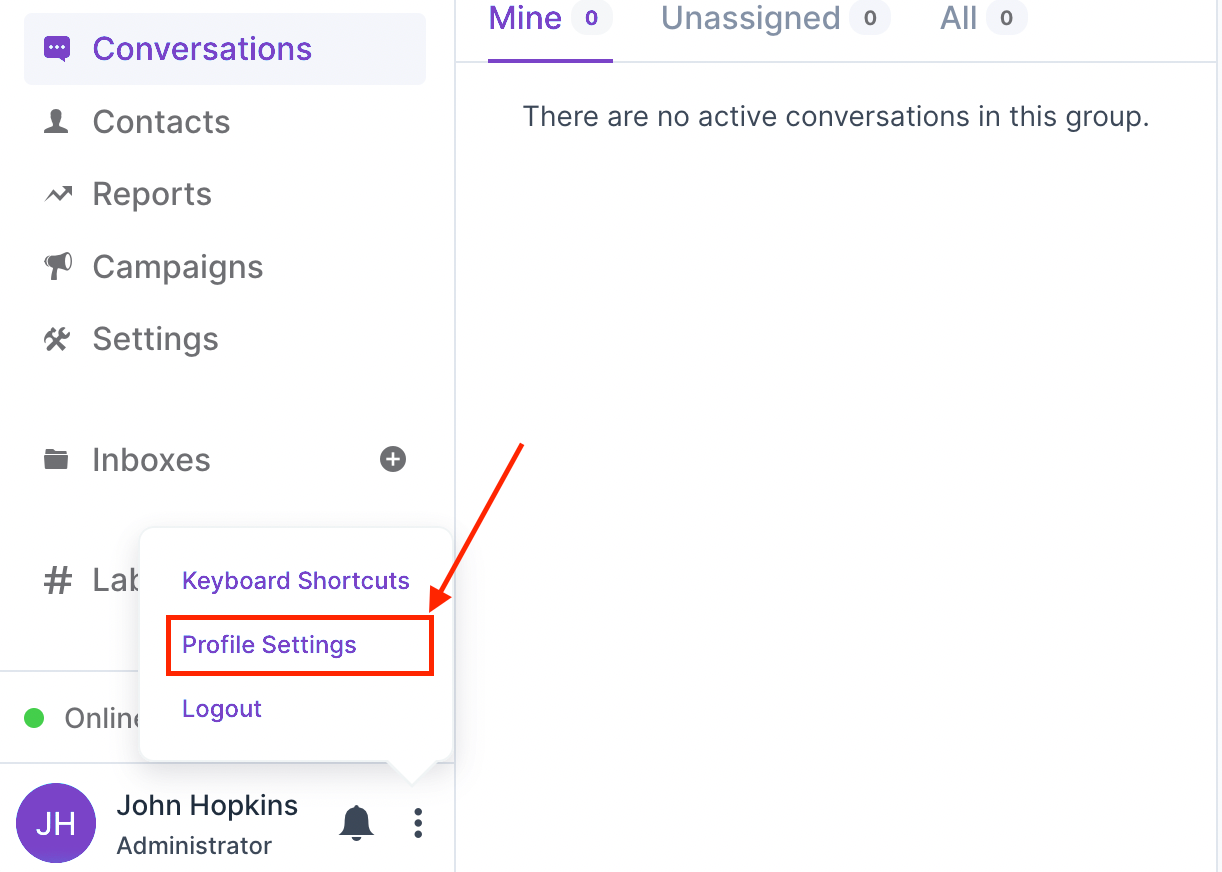
To navigate to the profile settings page, click on the kebab menu icon on the dashboard's bottom left corner, which would open a menu. Then, click on Profile Settings from the menu.
# Update your profile
This section will help you to update your profile on CarbonChat. The updated information will be used on the dashboard, live-chat widget, and in all external communication emails.
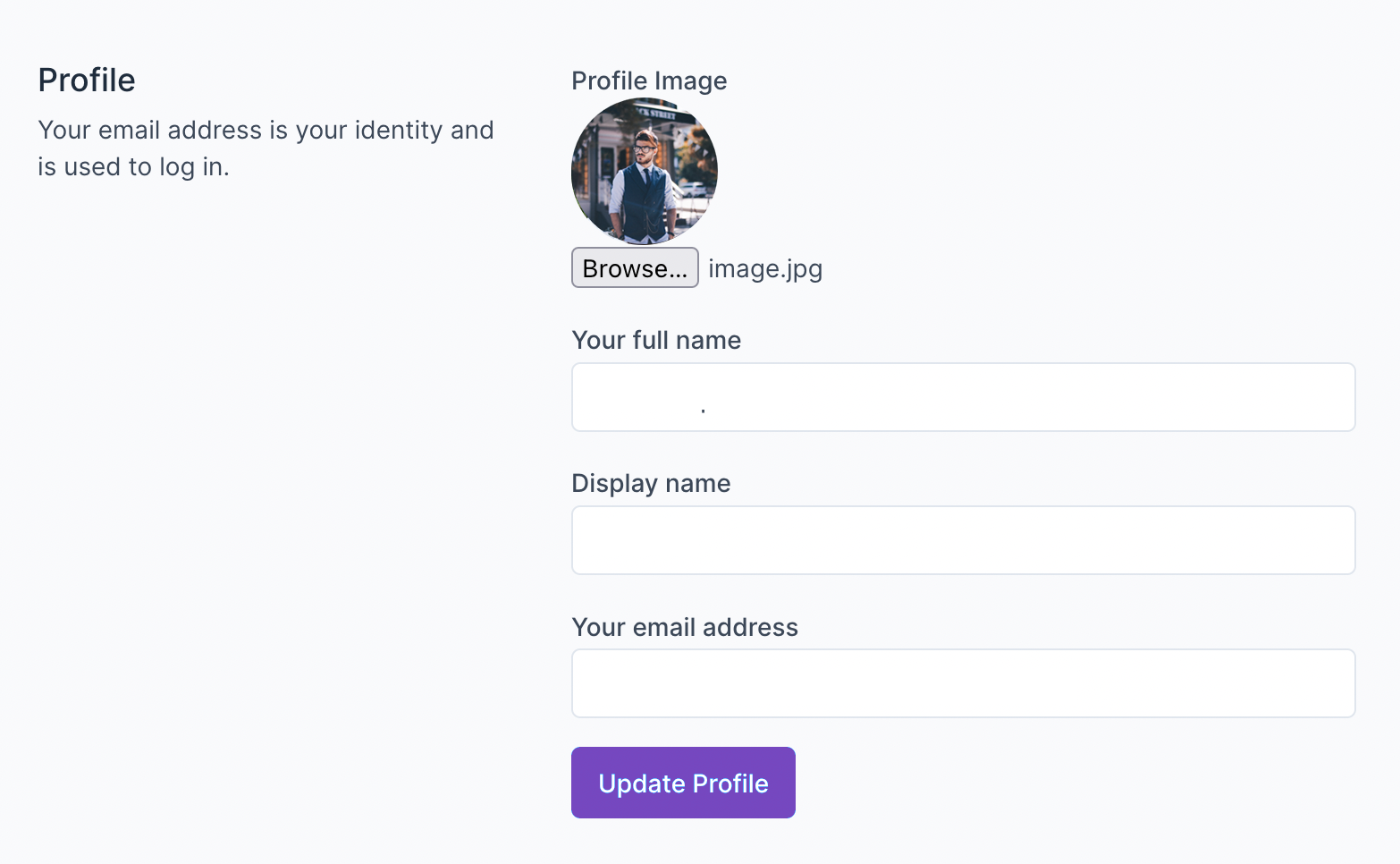
The fields in the form are described below.
| Field Name | Description |
|---|---|
| Profile Picture | A square image that suits your profile. If no image is provided, then the system would take a default Image if available |
| Your full name | Provide your full name. e.g.: Sherlock Holmes |
| User Name | Provide a name that you want to be displayed on the chat/emails e.g.: Sherlock H |
| Your email address | This email address will be used to send notifications, you will be using this email address to login to CarbonChat |
Click on Update Profile to save the changes. If the changes are successful, you will see a message "Your profile has been updated successfully."
Note: If you update your email address, then the system will log you out. You need to log in again with the updated email address and the password.
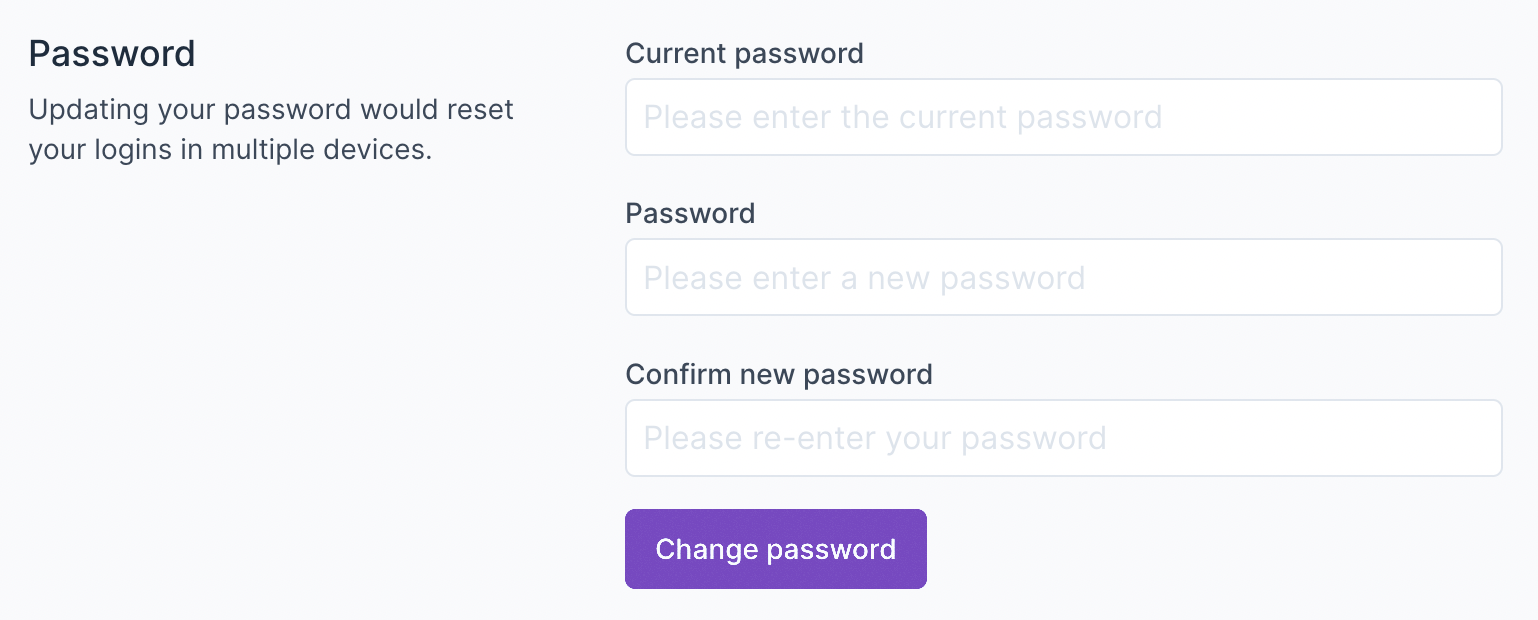
Change your password
As a security measure, you need to provide your existing password to change the password. If you forgot the old password, you can log out of the system and reset the password.
Password must contain at least one uppercase character (A-Z), at least one number character (0..9), at least one special character (!@#$%^&*()_+-=[]{}|'"/^.,`<>:;?~).