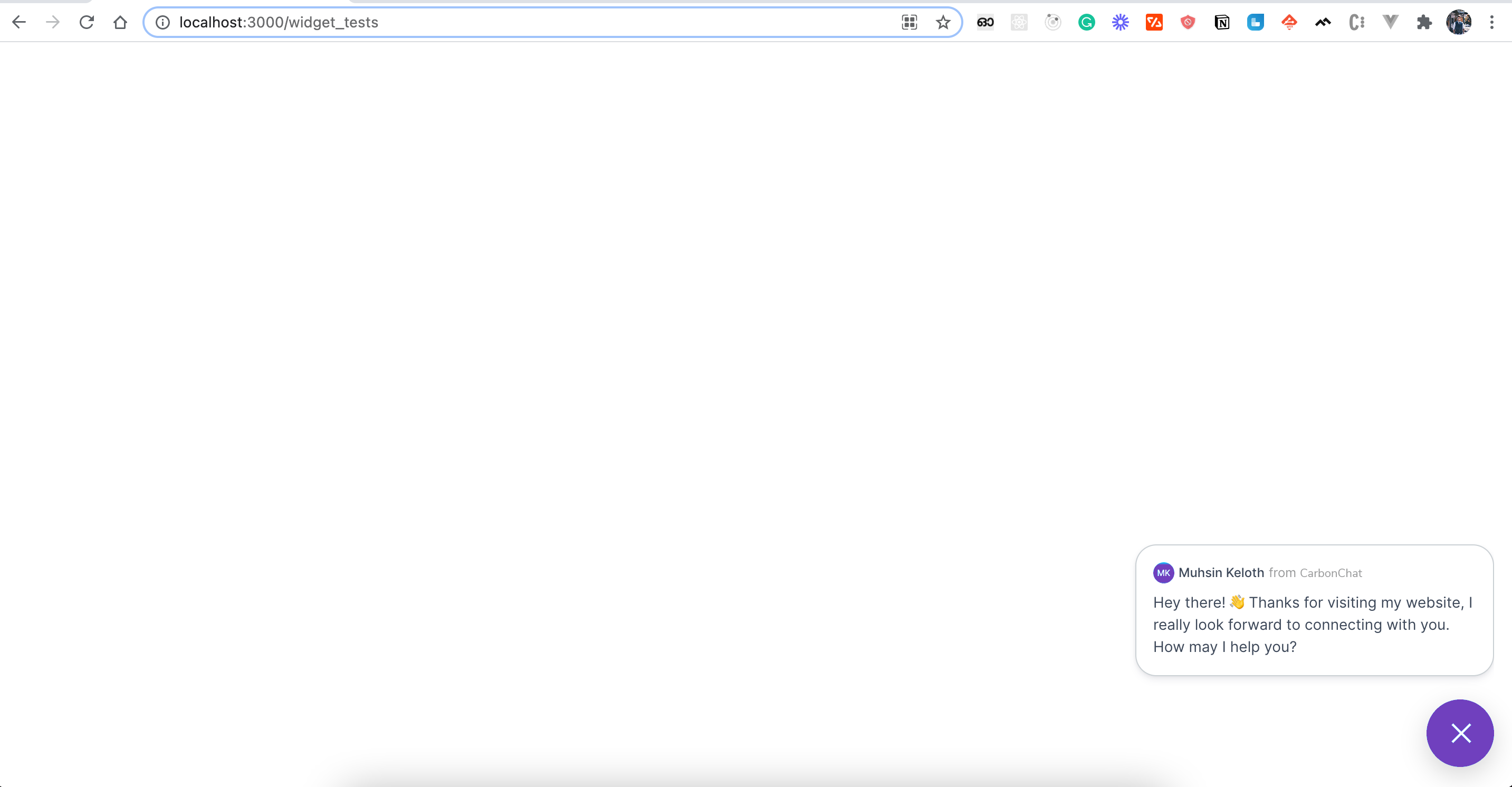
Campaigns
Campaigns enable the customer to send outbound messages to their contacts which would trigger more conversations. Campaigns are supported in website live chat and Twilio SMS/WhatsApp channels.
Step 1. Click on the Campaigns tab in the sidebar. You will see the list of campaigns that you have already added to the inbox.
There are 2 types of campaigns available.
One-off campaigns: For SMS channels, you can select a list of users and send one-time outbound message.
Ongoing campaigns: For Website live-chat, you can create an ongoing campaign so that if a user visited a page and stayed for x minutes, you could send outbound message. This will help in more conversions.
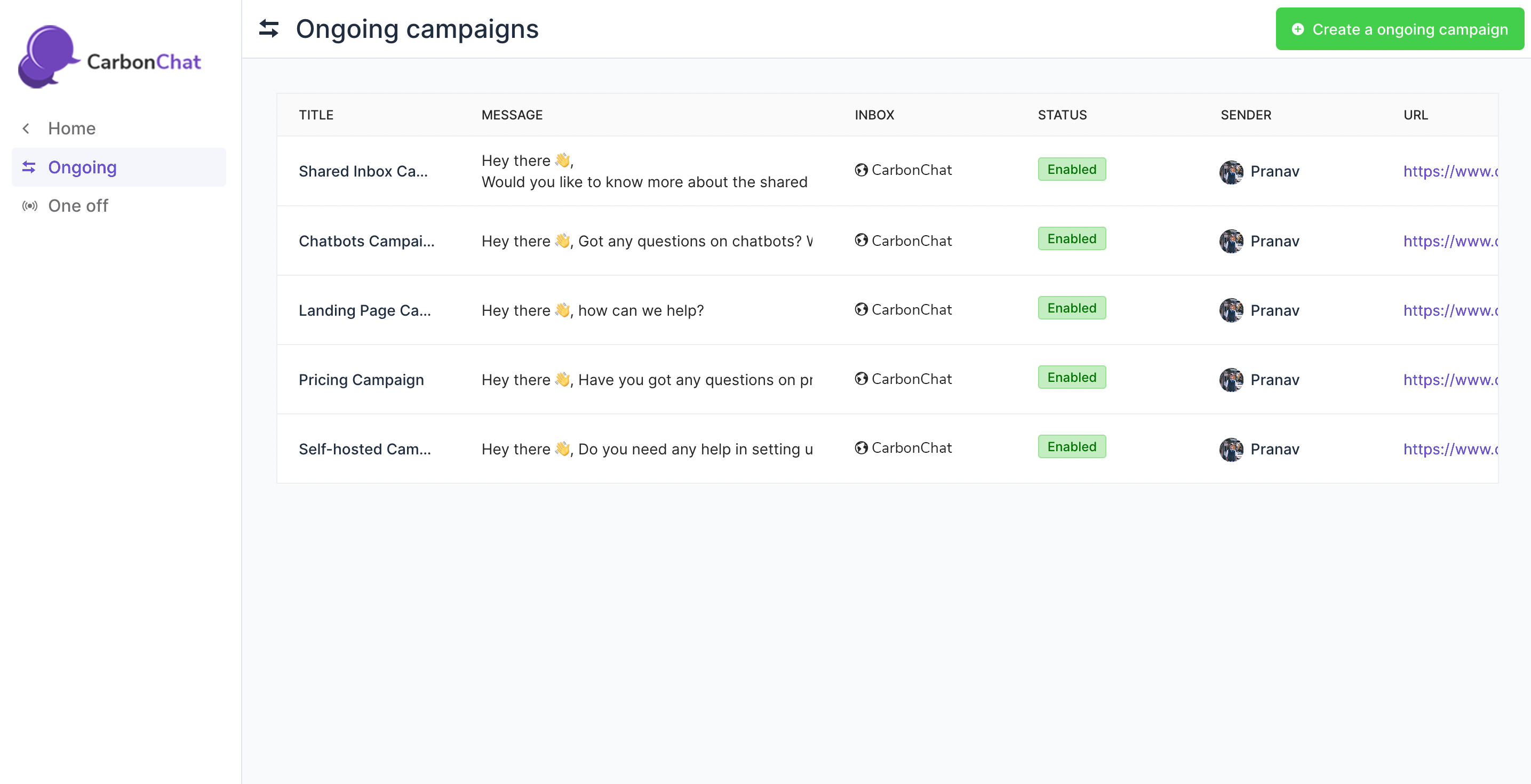
Step 2. Click on the "Create a campaign" button., it will display a modal where you can input the campaign details.
These are the inputs required to create the campaign:
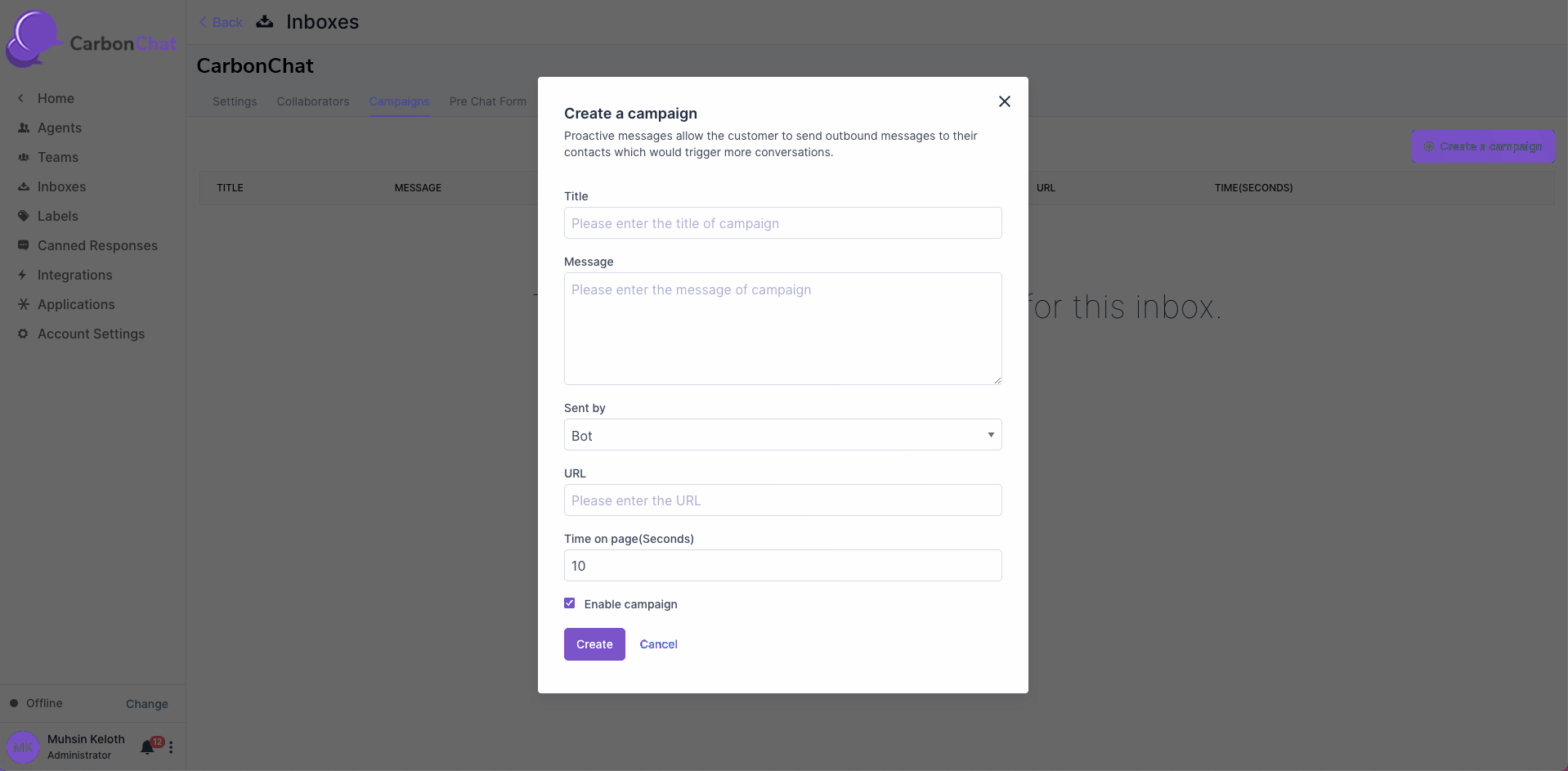
| Input | Description |
|---|---|
| Title | Campaign name |
| Message | Message to be sent in a campaign |
| Sent by | Agent details |
| URL | URL which campaigns work |
| Time on page | Time to wait until the campaign should be displayed (Seconds) |
| Enable campaign | The flag which shows whether the campaign is enabled or not |
Step 3. Visit the URL specified in the campaign and wait for the time configured in the campaign.