# How to create a WhatsApp/SMS channel with Twilio?
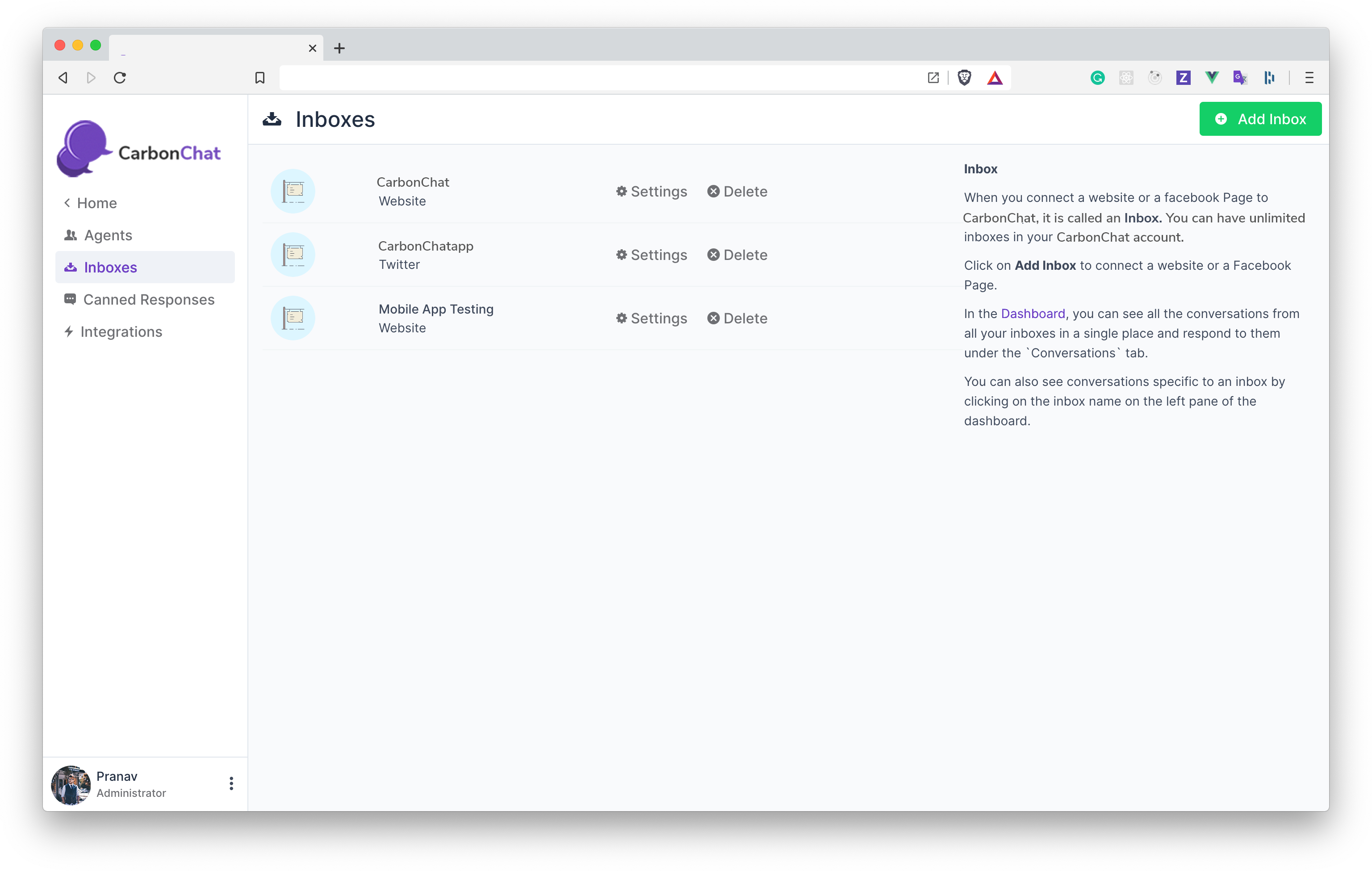
Step 1. Click on "Add Inbox" button from Settings > Inboxes page.
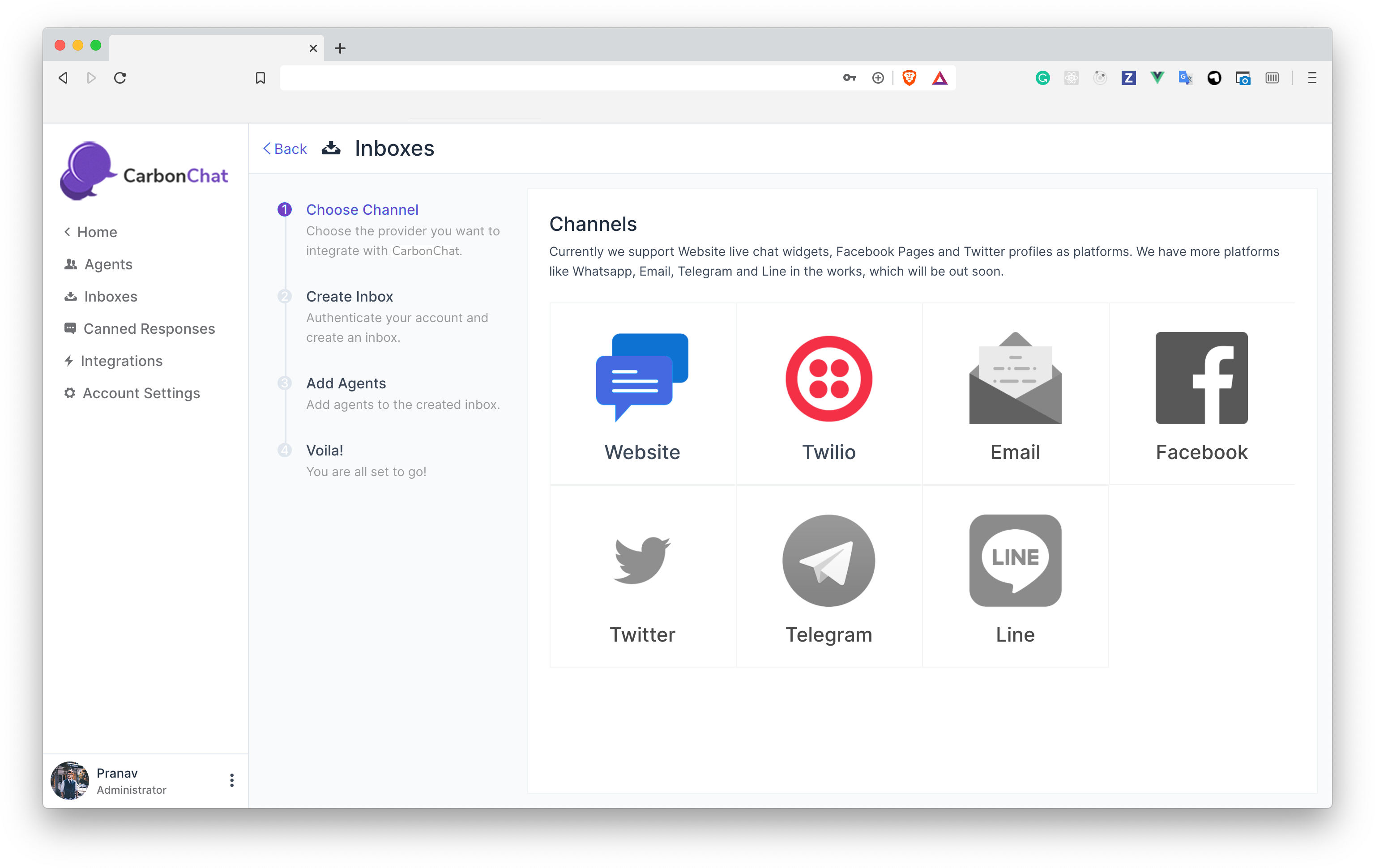
Step 2. Click on "Twilio" icon.
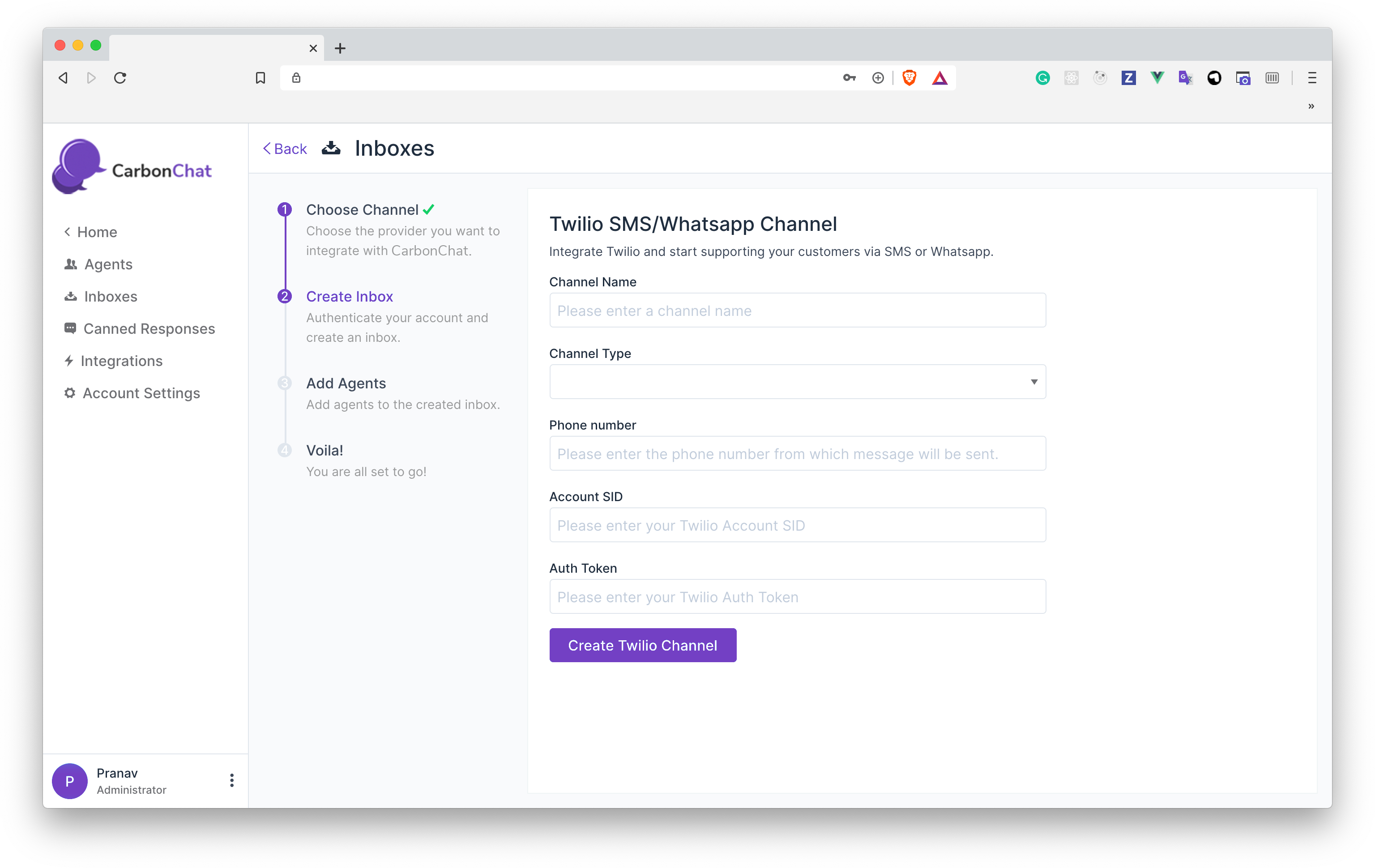
Step 3. Configure the inbox.
These are the inputs required to create this channel:
| Input | Description | Where can I find it |
|---|---|---|
| Channel Name | This is the name inbox; this will be used across the application. | N/A |
| Channel Type | Select SMS, if you are integrating an SMS channel. Select WhatsApp, if you have a verified WhatsApp number in Twilio. | N/A |
| Phone Number | This is the number you will be using to communicate with your customer. This has to be verified in Twilio. | Enter your number as in the Twilio Dashboard |
| Account SID | Account SID in Twilio Console | Login to Twilio Console. Here, you would be able to see the Account SID and the Auth Token |
| Auth Token | Auth token for the account | Login to the Twilio Console. Here, you would be able to see the Account SID and the Auth Token |
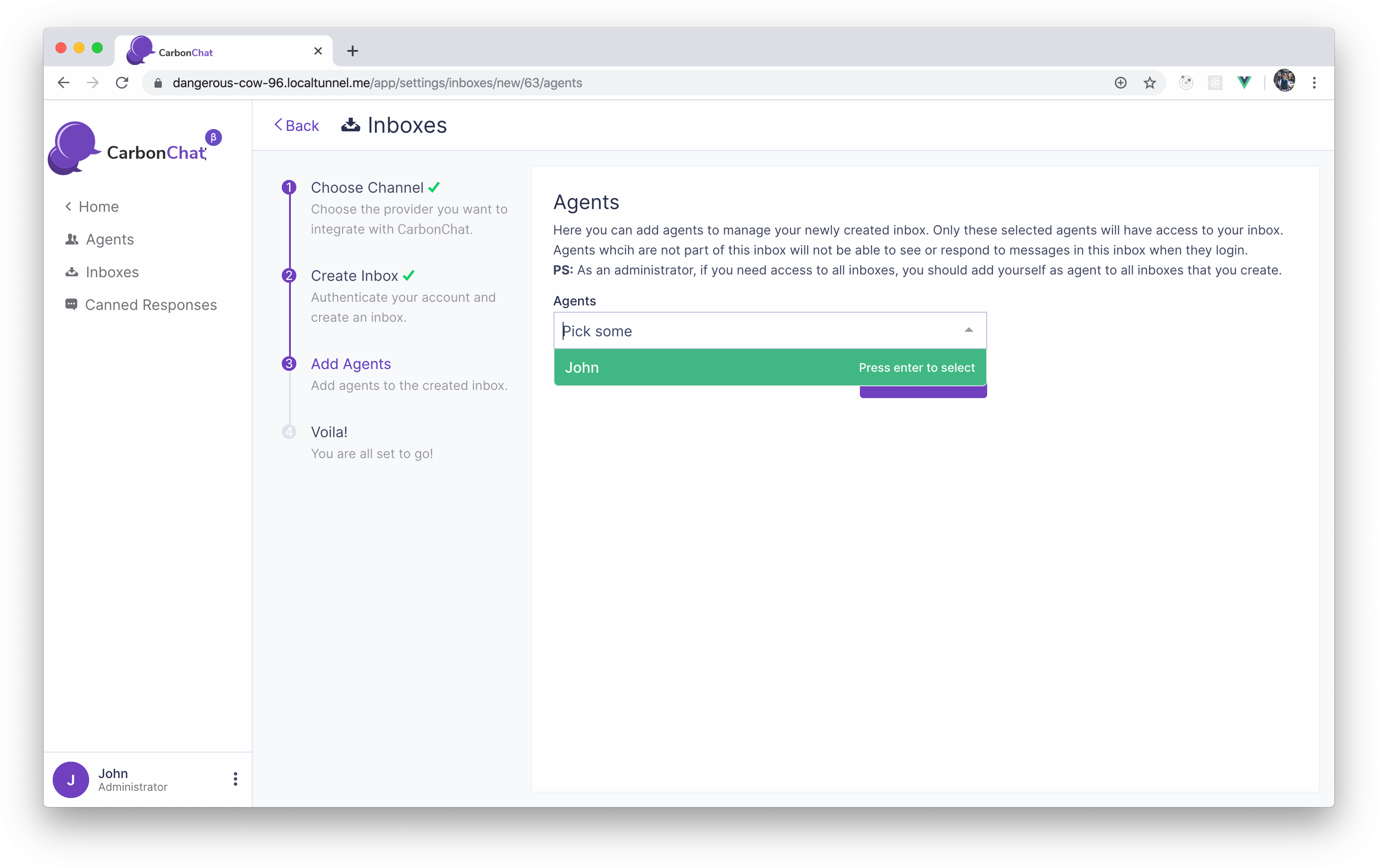
Step 4. "Add agents" to your inbox.
Step 5. Hooray! You have successfully created a WhatsApp/SMS inbox.
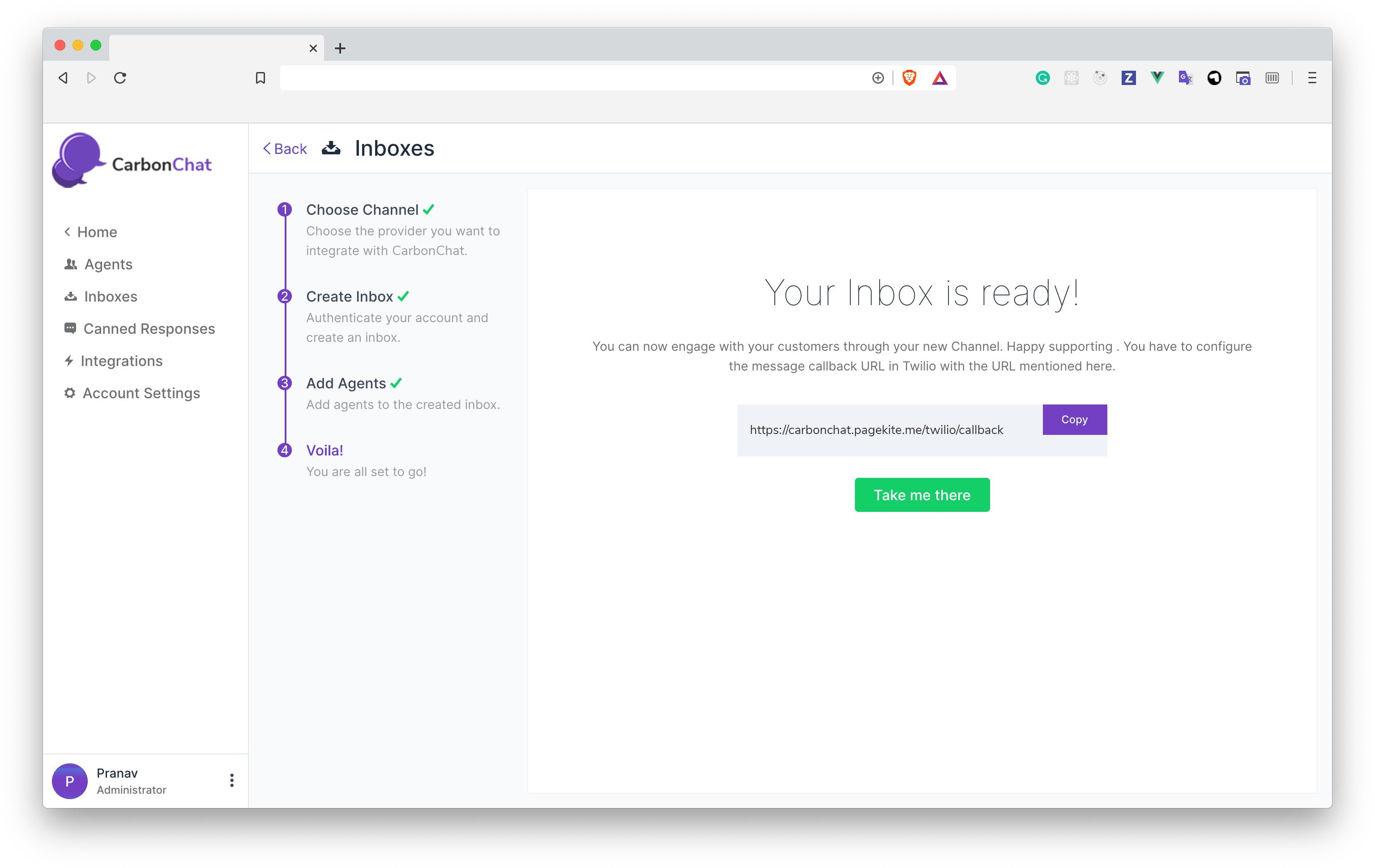
If it is an SMS Channel, then you don't need to do anything else. You will start receiving the messages in the dashboard whenever a customer sends you one.
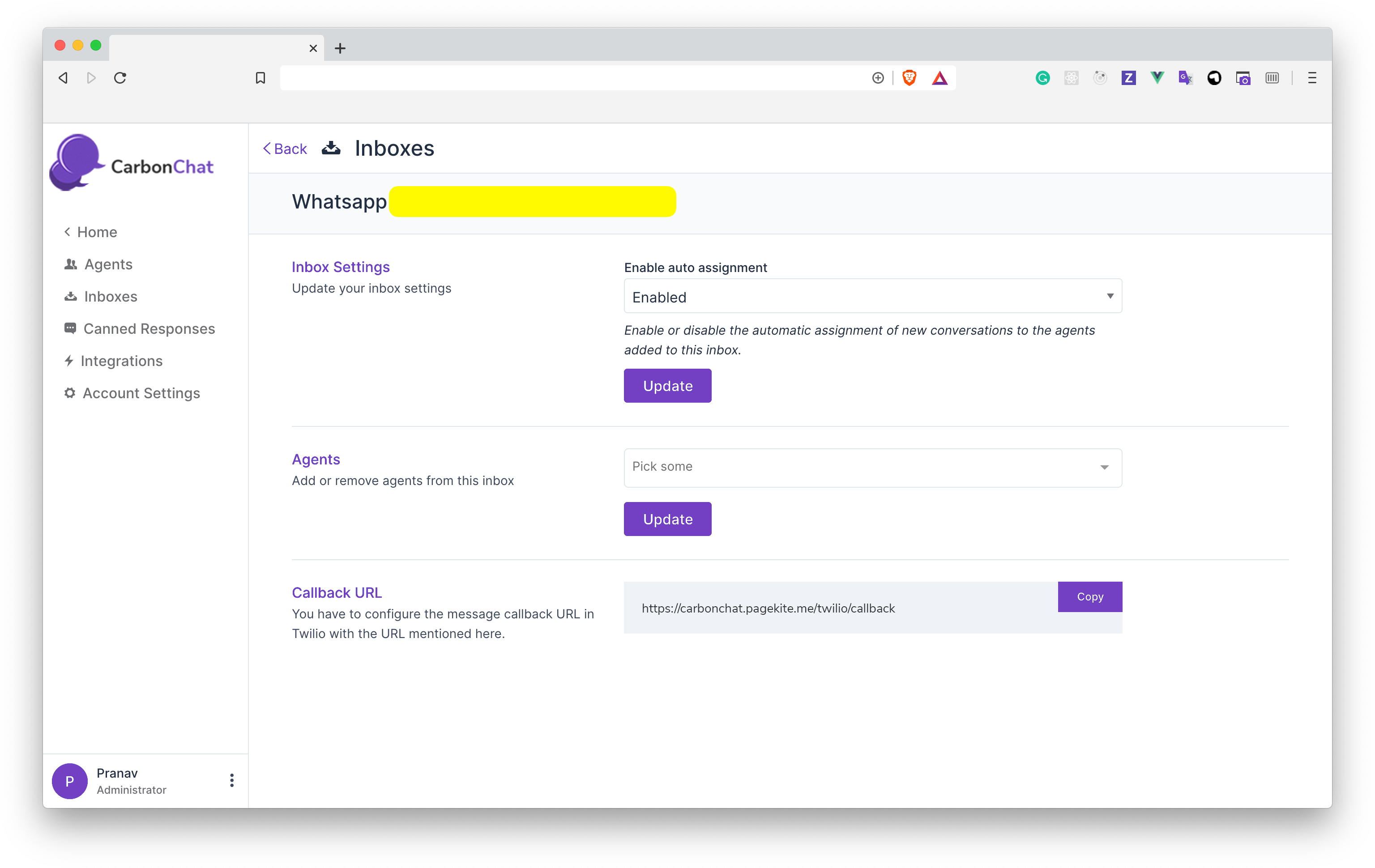
If you are connecting a WhatsApp channel, you have to configure a callback URL in the Twilio inbox:
- Login to your Twilio Console.
- Go to Programmable SMS > WhatsApp > Senders.
- You will be able to see your phone number. Click on it, it will display a field.
Provide https://app.CarbonChat.com/twilio/callback as the value for WHEN A MESSAGE COMES IN input.
Step 6. If you want to update the agents who have access to the inbox, you can go to Settings > Inboxes.